Your Litecoin in Nexus Wallet can now be accessed from desktop computers and laptops using the Electrum-LTC app for macOS, Windows or Linux.
Doing this is simple. First we must locate your Nexus Wallet's master private key:
-
Open and unlock your Nexus Wallet.
-
Click the Settings cog on the top left to open the Settings menu.
-
Locate "Export Wallet to Electrum" under Wallet Settings.
-
Enter your Nexus Wallet pincode.
-
You should now be able to see your Nexus Wallet master keys, under "private key" and "public key".
Now it's time to import your master private key into Electrum-LTC.
-
Get Electrum-LTC from https://electrum-ltc.org
-
If it's your first time opening up Electrum-LTC you will see a menu to create a new wallet. Otherwise, you can create a new wallet by locating "New/Restore" under the menu tab.
-
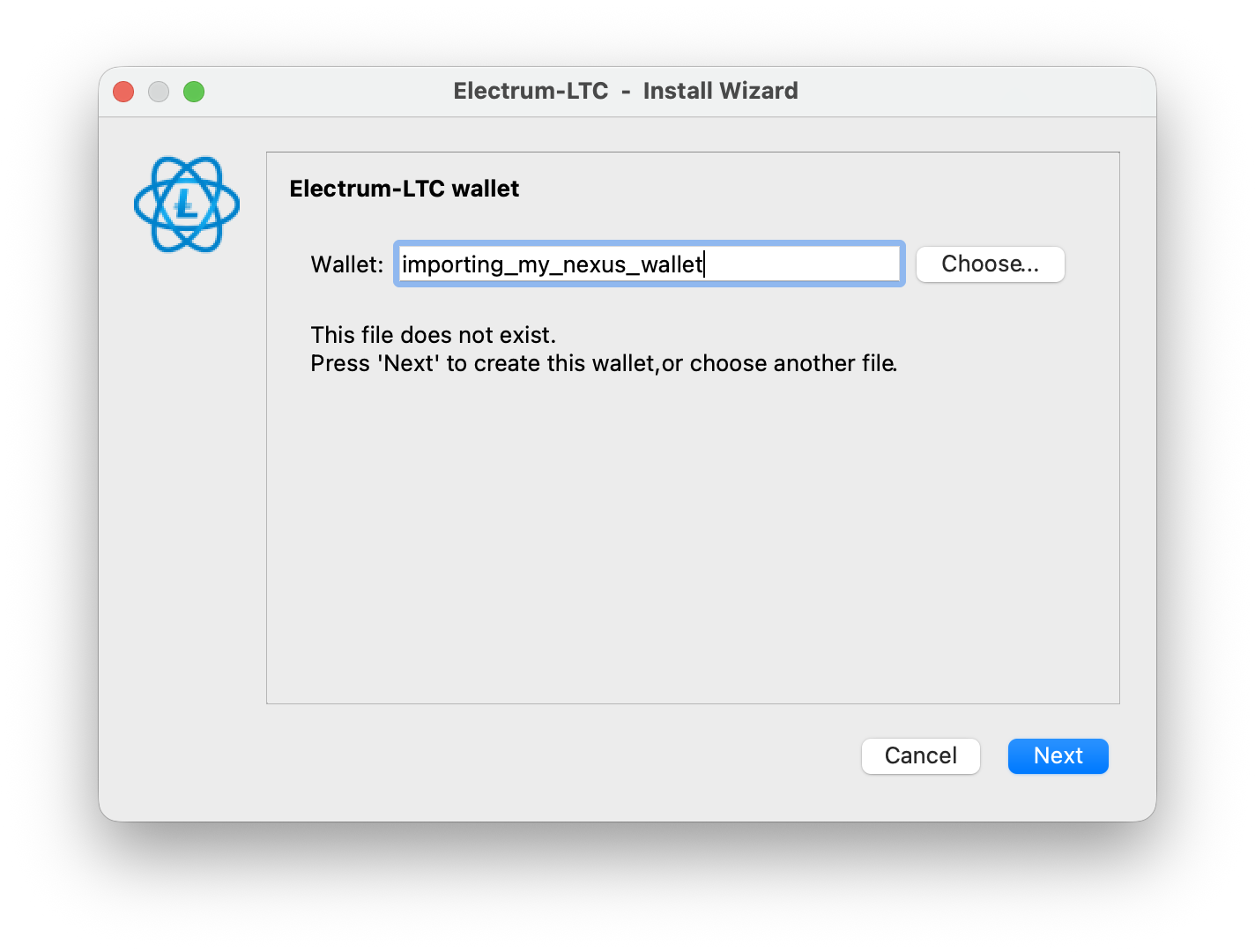
Enter a name for your Imported Nexus Wallet. Press Next.
-
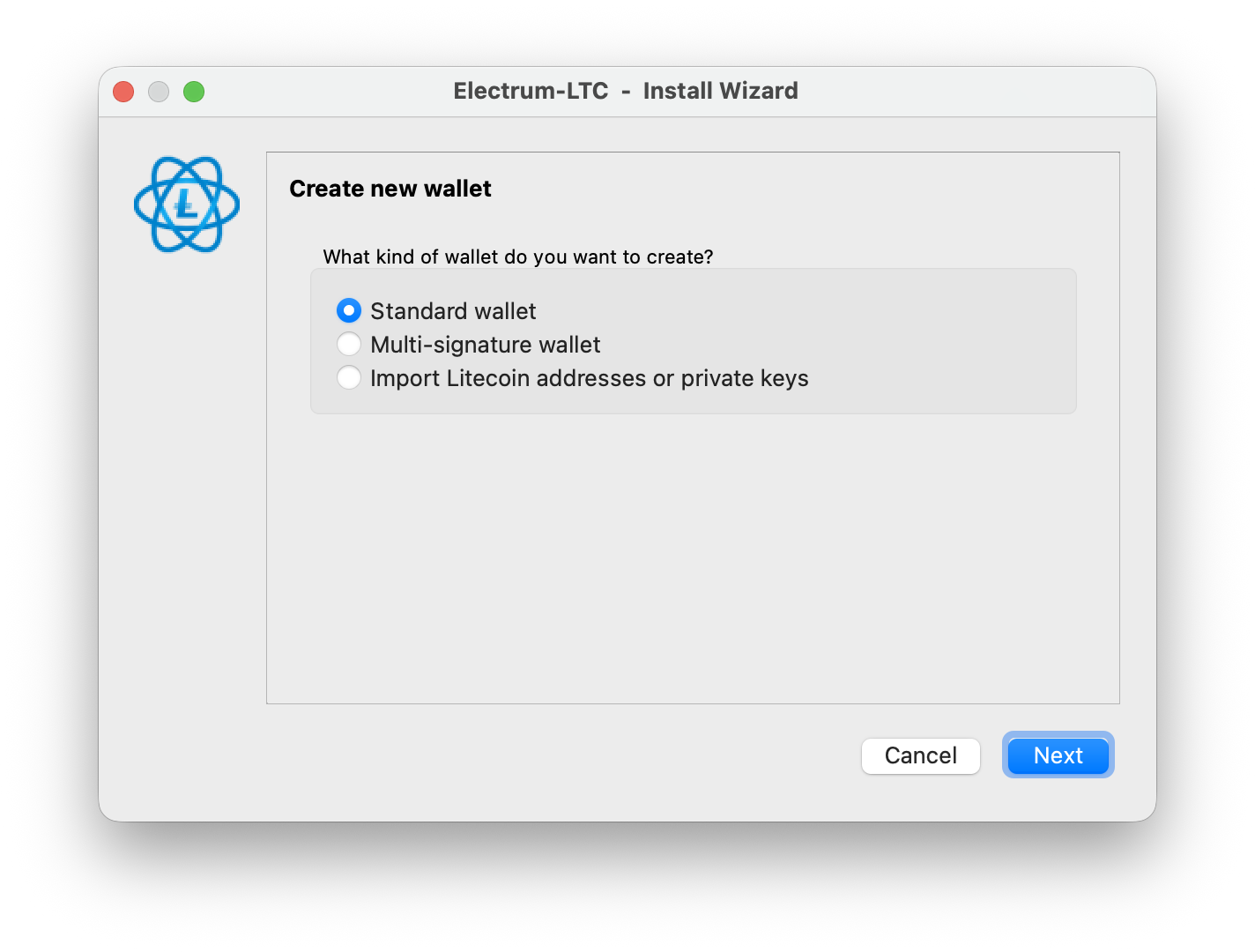
Under "What kind of wallet do you want to create?" Select "Standard wallet".
-
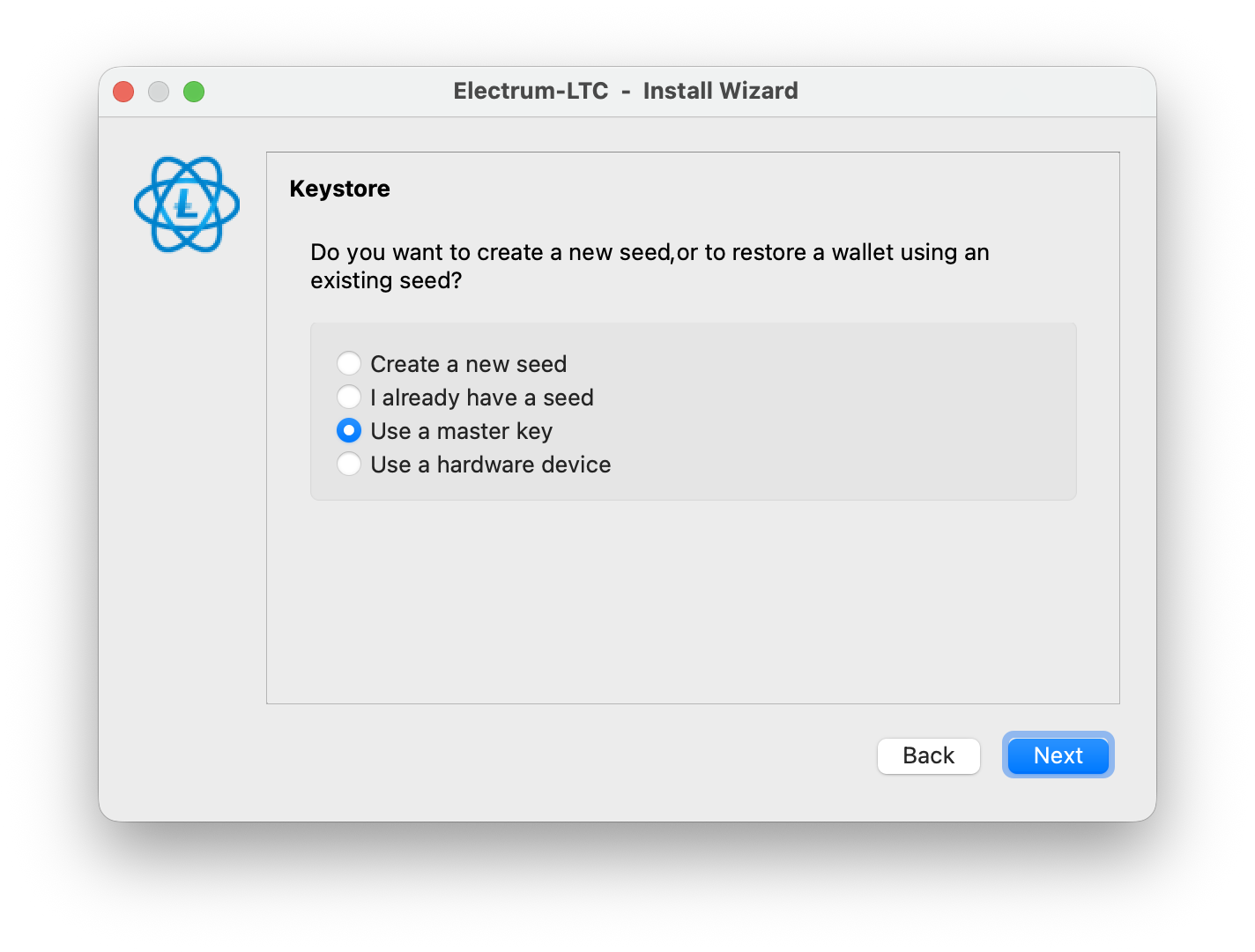
Next select "Use a master key".
-
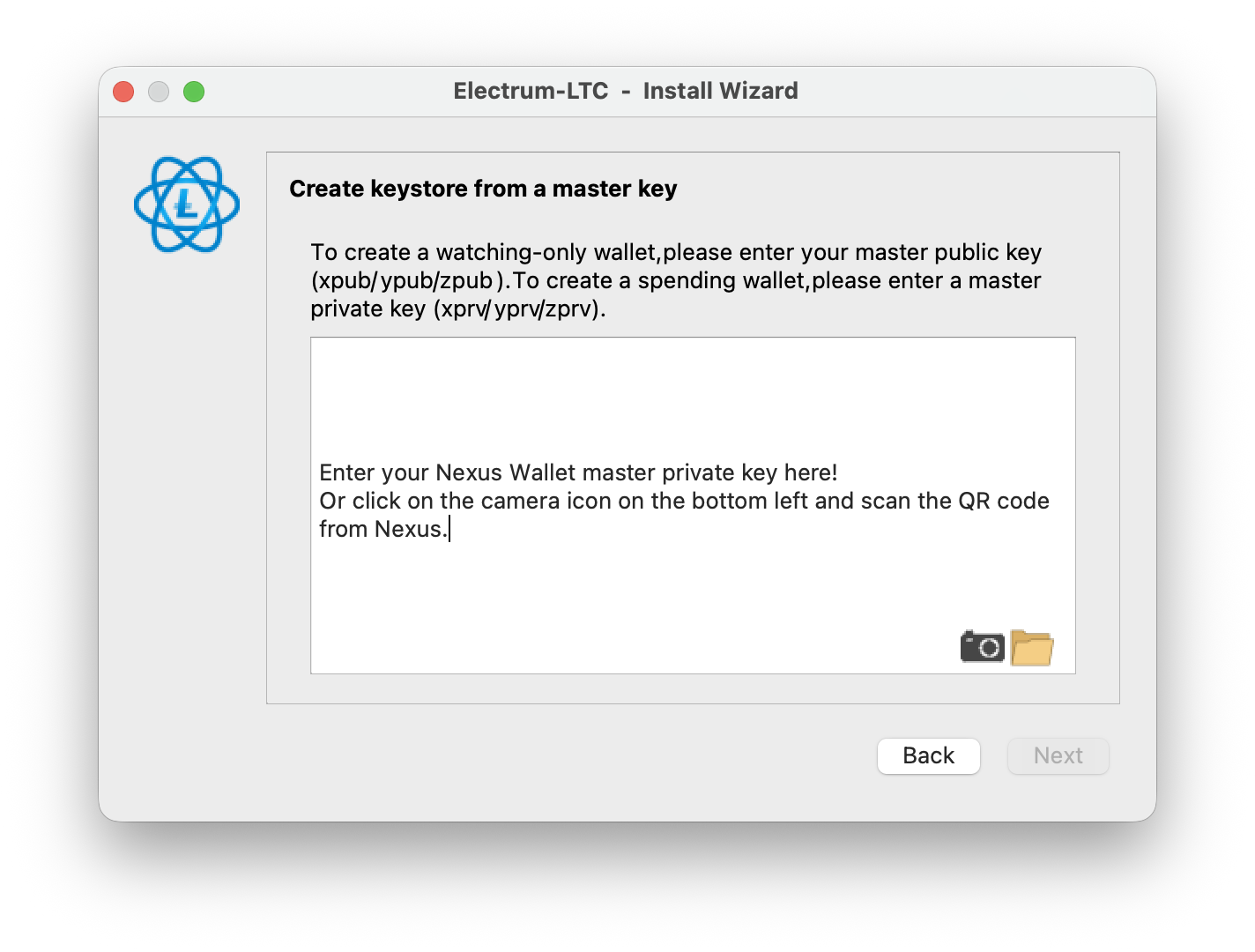
Enter your Nexus Wallet master private key. Or scan the QR code from Nexus.
You should now be able to access your Litecoin from Electrum-LTC.
NOTE: Electrum-LTC can only import your Regular Litecoin and not any Private Litecoin (MWEB).